


Generative AI (GenAI) is changing how enterprises work. It brings big gains in innovation and efficiency, but it also creates new security challenges. Because the web browser is now at the centre of modern work, it is also where GenAI can have the most impact, and where it most needs to be governed.
In this post we look at how Chrome Enterprise lets IT and security teams give employees the time-saving benefits of GenAI while controlling how those tools are used.
Chrome Enterprise’s approach to AI
Chrome Enterprise lets IT teams govern how employees access and use any GenAI tool or service in the browser. They do this with granular policies that are managed centrally in the Google Admin console and can be applied to specific users, to teams or to the whole organization.
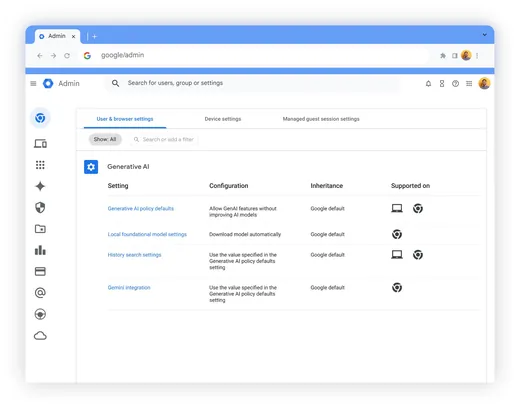
AI in the browser isn’t new. Chrome has been adding AI-powered tools for more than a decade. Today, Gemini Nano, an on-device model, ships with Chrome, so developers can build high-quality AI experiences without starting from scratch. Privacy is built in: protected customer data is never shared with third parties or used to train AI models, and Chrome uses on-device models where possible to reduce data collection.
GenAI capabilities available in Chrome
Chrome has many built-in GenAI features that help employees finish manual tasks faster, create content quickly and streamline customer engagement:
| Feature | What it does |
|---|---|
| Tab Compare | Compares information across open tabs. |
| History Search | Searches browsing history with AI-powered answers. |
| DevTools GenAI | Adds AI-powered debugging in DevTools (some debugging data is sent to Google). |
| Google Lens | Visual search with camera, voice and video queries, product insights and image verification. |
| Gemini Enterprise | A single AI hub that combines enterprise data, Gemini’s AI and tools like NotebookLM Plus for search, insights and task automation. |
| Gemini in Chrome | Uses the context of the page you’re viewing to give relevant answers while you browse. |
| AI Mode | Brings Google Search’s AI Mode into the address bar and new tab page for complex, multi-step questions. |

Note that Google features like Lens and Gemini Enterprise are covered by their own terms of service.
Security, privacy and compliance
Before you roll out any GenAI feature, understand how it handles data. Chrome follows these principles:
- Data privacy: strict data minimization. Only what’s necessary is collected, in a way that can’t be attributed to a specific user.
- What’s collected and why: usage metrics, user content (prompts, files, page context) and outputs. These are used to deliver the service and prevent abuse, and to improve the service only when enterprise data guarantees are not enabled.
- Retention: when model training is disabled, prompts and outputs are generally kept for 28 days or less for security and abuse prevention. Pseudonymized metrics are typically kept for up to 18 months.
- Encryption: all data is encrypted in transit (TLS/SSL) and at rest.
- Processing and storage: data is often processed in the region closest to users. Details are in Chrome’s SOC 3 report.
Managing GenAI capabilities with policy
Every Chrome-built GenAI capability has its own policy, for example TabCompareSettings, HistorySearchSettings and DevToolsGenAiSettings. With Chrome Enterprise Core, you can manage all of them across desktop and mobile from the cloud. Each feature generally has three states:
| State | Behaviour | Default for |
|---|---|---|
| 0 | Allow the feature and improve AI models | Unmanaged or third-party managed browsers |
| 1 | Allow the feature without improving AI models | Browsers managed with Chrome Enterprise Core or Premium |
| 2 | Do not allow the feature (may limit productivity benefits) | N/A |
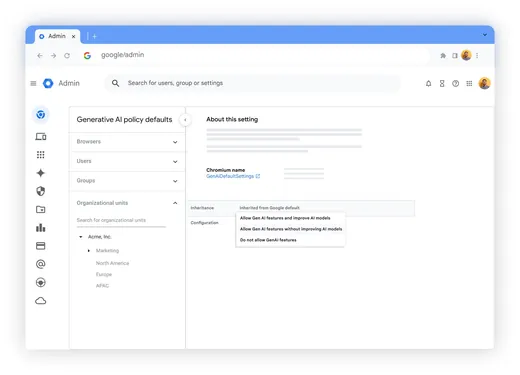
For global governance, two policies are especially useful:
- GenAiDefaultSettings (Chrome Enterprise Core and Premium): sets your preferred defaults for new and existing GenAI features without overriding policies you’ve set manually.
- GenAILocalFoundationalModelSettings: equips the browser with on-device models where hardware allows. This gives faster results, collects less data, relies less on external servers and uses less bandwidth.
5 steps to a strong AI governance strategy
Step 1: Define your data categories
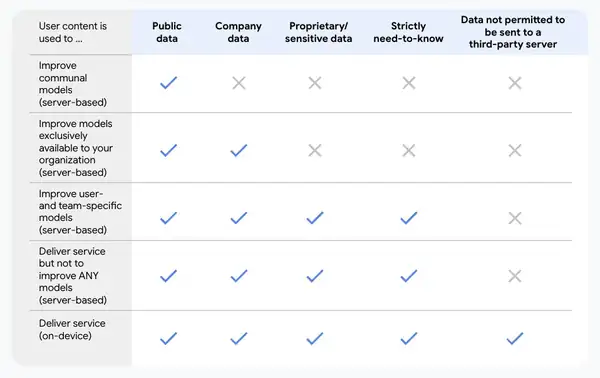
Group your data by sensitivity: public data, company data, proprietary or sensitive data, strictly need-to-know data, and data not allowed on third-party servers (for example, highly sensitive government data).
Step 2: Define the types of GenAI tools you allow
Classify tools by their outputs, their inputs, where the model processes data (on-device or server-based), and how the data is used (model improvement or service delivery only). A practical classification is:
- Server-based models that use content to improve a communal model, an organization-exclusive model or a team-specific model
- Server-based features that don’t use any content to improve models
- On-device features that don’t use any content to improve models
Step 3: Map tools to data types
A simple matrix makes it clear which tools can be used with which data, so teams can pick the right tool with confidence.
Step 4: Share a clear list of approved and unapproved tools
When users can see which tools are approved, they make safer choices, accidental data leaks become less likely, and everyone stays aligned. Explaining why decisions were made also builds trust.
Step 5: Automate AI policy management
With GenAiDefaultSettings, admins don’t need to manage each feature one by one, and new capabilities launch with the controls they’ve already chosen. Subscribe to the Chrome Enterprise release notes to keep track of upcoming GenAI features.
Going further with Chrome Enterprise Premium

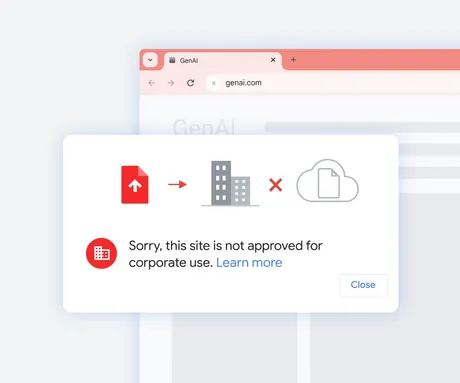
Once your governance strategy is in place, Chrome Enterprise Premium adds context-aware access controls, data loss prevention (DLP), URL filtering and advanced protection against malware and phishing. For GenAI, this means you can block access to unapproved tools and stop sensitive data from being shared where it shouldn’t be.
Questions to shape your AI best practices
- When should users disclose that work was AI-generated?
- Are there tasks teams shouldn’t use GenAI for?
- Which tasks should you actively encourage GenAI for?
- Should there be limits on how much of a final piece of work is AI-generated?
- Which personal or sensitive data should never be shared with AI tools?
- How should users double-check AI-generated work?
- How can teams spot AI “hallucinations” or inaccuracies?
Enable GenAI securely with Bizmartech
GenAI is moving fast, and the browser is where your people use it every day. With the right policies, a clear governance framework and Chrome Enterprise’s controls, you can unlock productivity without putting your data at risk. Contact Bizmartech to start building your browser-based AI governance strategy.